


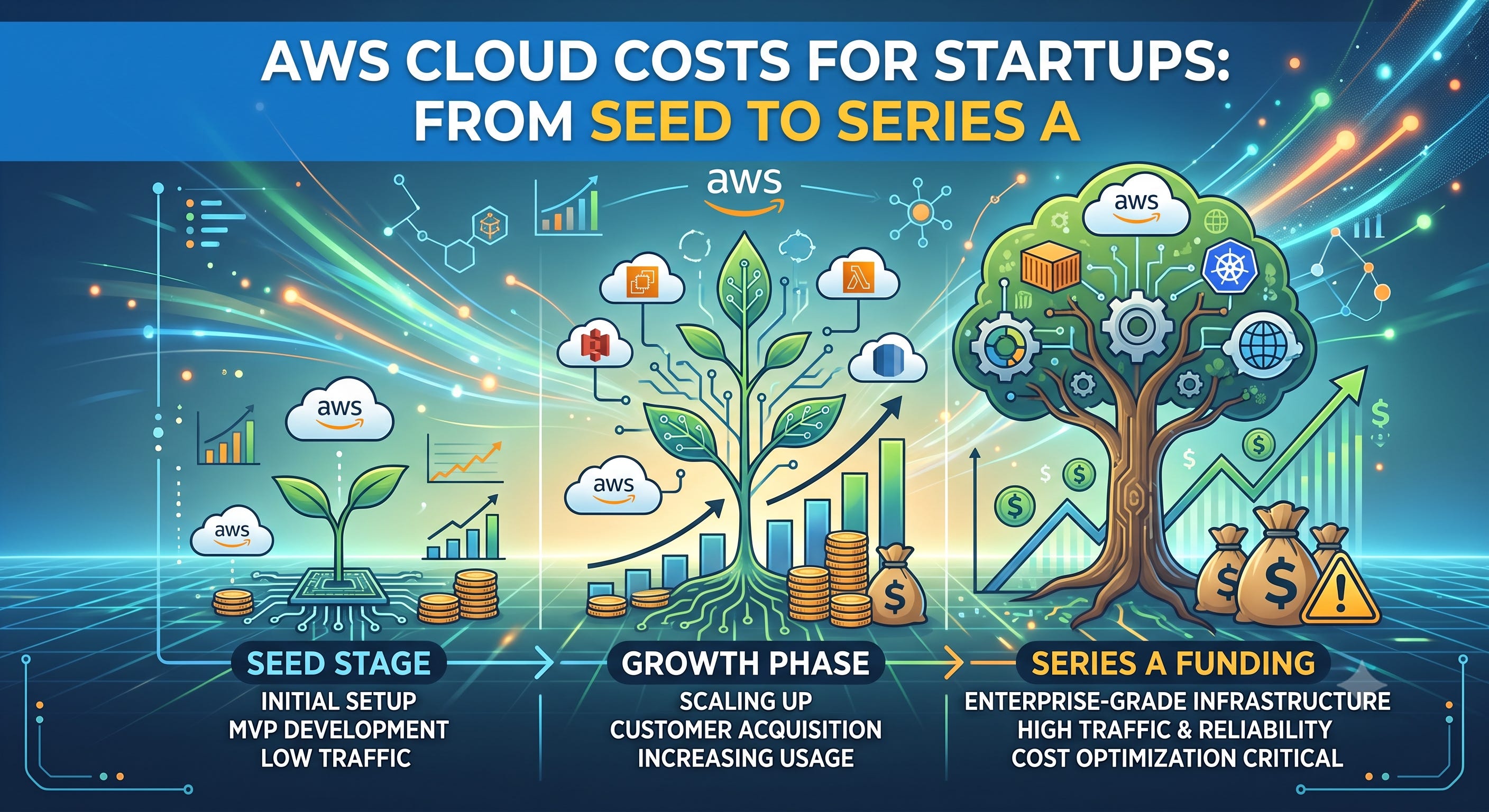
You just closed your seed round. Congratulations.
Now the real work begins.
Investors will ask about runway. They’ll ask about burn. And if you’re building on AWS (or any cloud provider), they’ll eventually ask: “What’s your cloud spend, and is it proportional to revenue?”
Most founders can’t answer that question with confidence.
Not because they’re reckless. But because cloud billing is its own language—and no one handed you a dictionary when you signed up.
This post is that dictionary.
We’ll cover:
Key terms every founder should know (so you don’t nod along in confusion)
Free tools to track costs without hiring a FinOps team
Practical savings tactics that take <1 hour to implement
When to worry and when to iterate
If your cloud bill is already growing faster than expected, see our companion guide: Why Your Cloud Bill Keeps Growing (And How to Stop It) for a deeper dive into waste detection and remediation.
The Startup Finance Context
At seed stage, cloud costs are often buried under “infrastructure” or “hosting.” No one tracks them separately.
But by Series A, investors want to see:
Gross margins that make sense
Unit economics that scale
Operational discipline in engineering spend
Cloud costs directly impact all three.
A SaaS startup spending $8,000/month on AWS with $50,000 MRR has a serious problem: that’s 16% of revenue going to infrastructure alone. Healthy SaaS infrastructure costs are typically 2–8% of revenue, not 16%.
But you can’t fix what you don’t measure. And you can’t measure what you don’t understand.
Key Terms Every Founder Should Know
AWS billing has its own vocabulary. Here are the terms that matter.
1. On-Demand Pricing
The default. Pay-per-hour for compute, per-GB for storage and data transfer.
AWS On-Demand Pricing (us-east-1):
t3.medium — $0.0416/hour ($30/month)
c5.2xlarge — $0.34/hour ($245/month)
S3 storage — $0.023/GB-month
EBS gp3 — $0.08/GB-month
Pros: No commitment, maximum flexibility.
Cons: Most expensive per-unit. No price protection.
2. Reserved Instances (RI)
Commit to a specific instance type for 1–3 years in exchange for up to 72% discount.
Standard RIs: Cheapest, but can’t exchange instance types
Convertable RIs: Slightly less discount, but can exchange within instance family
Startup context: Only commit once you have stable, predictable workloads. Locking in the wrong instance type is worse than paying on-demand.
3. Savings Plans
A newer model. Commit to a dollar amount per hour of compute usage, regardless of instance type.
Compute Savings Plan: Up to 72% discount, applies across EC2, Fargate, Lambda
EC2 Instance Savings Plan: Up to 72% discount, but tied to instance family in a region
Startup context: More flexible than RIs. If you commit $50/hour, you can shift between instance sizes and still get the discount.
4. Spot Instances
Spare AWS capacity auctioned at up to 90% discount.
Use for: Batch jobs, CI/CD, data processing, anything stateless.
Avoid for: Production databases, user-facing services that can’t tolerate interruption.
Startup context: Spot is ideal for dev/test environments and CI pipelines. Many startups cut 50–70% of compute costs by moving non-production work to spot.
5. Right-Sizing
Matching instance type to actual workload needs.
If your c5.2xlarge (8 vCPU, 16 GB RAM) runs at 20% CPU average, you may be able to move to c5.large (2 vCPU, 4 GB RAM) and save 75%.
6. Cost Allocation Tags
Labels attached to resources (e.g., Environment: prod, Team: backend, Project: payments).
Tags let you answer:
“How much does our staging environment cost?”
“Which team is spending the most?”
“Is this service worth what we’re paying?”
Startup context: Start tagging early. The longer you wait, the harder it is to retroactively attribute costs.
7. Blended vs. Unblended Cost
Unblended: What you’re actually charged for each line item
Blended: Average rate across all usage (used when sharing Reserved Instances across accounts)
For most startups, unblended is what you want to track.
8. Free Tier Limitations
AWS offers 12 months of free tier for new accounts:
EC2 — 750 hours/month of t2.micro or t3.micro
RDS — 750 hours/month of db.t3.micro
S3 — 5 GB storage, 20,000 GET requests
Lambda — 1M free requests, 400,000 GB-seconds
Data Transfer — 100 GB/month outbound
Note: Free tier expires after 12 months or when usage exceeds limits. Many startups miss this and get surprised by a bill that suddenly jumps.
9. Data Transfer (Egress) Costs
Often overlooked.
Outbound to internet: $0.09/GB first 100GB, then $0.085/GB
Inter-region: $0.01–$0.02/GB
Cross-AZ (same region): $0.01/GB each direction
If you serve 500 GB of data per month to users, that’s $40+ in egress alone. Not huge, but it compounds.
10. Storage Costs
EBS (block): $0.08/GB for gp3, plus IOPS charges
S3 (object): $0.023/GB standard, lifecycle tiers available
Snapshots: Stored in S3, billed at $0.05/GB
Trap: Snapshots accumulate. Every time you back up an EBS volume, you pay for storage unless you delete old ones.
Free Resources to Track Costs
You don’t need paid tools to get started. Here’s what AWS provides for free.
1. AWS Cost Explorer
Built into the console.
What it does:
Visualize daily/monthly spend
Filter by service, region, tag, account
View forecasted spend
How to access:
Log into AWS Console
Go to Billing & Cost Management → Cost Explorer
Quick setup:
Enable Hourly and Resource Level Data (may take 24–48 hours to activate)
Create a Saved Report for “Daily spend by service”
Bookmark it and check weekly
2. AWS Budgets
Set alerts before you overspend.
Setup:
Go to Billing & Cost Management → Budgets
Create a budget:
Set monthly limit (e.g., $3,000)
Add alerts at 50%, 75%, 90%
Email yourself and your engineering lead
Tip: Start conservative. It’s better to get an alert and ignore it than to never get one.
3. AWS Trusted Advisor
Checks your account for:
Idle load balancers
Under-utilized EBS volumes
Unassociated elastic IPs
Exposed security groups
Access: Basic tier is free for all accounts. Go to Trusted Advisor → Cost Optimization.
4. AWS Cost Anomaly Detection
Machine learning-based detection of spend spikes.
Setup:
Go to Billing & Cost Management → Cost Anomaly Detection
Create a monitor for your account or specific services
Set alert thresholds (e.g., “alert if spike > $100”)
This catches sudden jumps caused by misconfigurations, runaway jobs, or crypto miners.
5. AWS Compute Optimizer
Free ML-based right-sizing recommendations.
What it shows:
Instances running below 40% CPU for >30 days → recommends smaller sizes
Under-utilized EBS volumes → recommends smaller or gp3
Access: Enable in Compute Optimizer console.
6. Third-Party Free Tier Options
Kubecost — Free for single cluster — Best for Kubernetes cost visibility
GCP Billing Export + Looker Studio — Free — Best for multi-cloud dashboards
CloudHealth — 30-day trial — Best for advanced reporting
Infracost — Free CLI — Best for cost estimates on Terraform changes
For most seed stage startups, Cost Explorer + Budgets + Trusted Advisor covers 80% of what you need.
Quick Wins: Cost Savings in Under an Hour
You don’t need a major project to save money. Here are actions that take <60 minutes.
1. Delete Orphaned EBS Volumes (15 min)
What: Volumes detached from EC2 instances that still bill you.
How:
Go to EC2 Console → Volumes
Filter by
State: AvailableCheck creation date—delete anything >30 days old (or snapshot first if unsure)
Confirm deletion
Savings: $0.08–$0.80 per GB per month (gp3 rates)
2. Release Unassociated Elastic IPs (5 min)
What: Static IPs not attached to any instance.
Cost: $0.005/hour per IP (~$3.60/month each)
How:
Go to EC2 Console → Elastic IPs
Filter by
Association ID: nullRelease each unattached IP
3. Enable S3 Intelligent-Tiering (10 min)
What: Automatically moves infrequently accessed objects to cheaper storage tiers.
Cost: $0.0025/1000 objects for monitoring + reduced storage rates.
How:
Go to S3 Console
Select your bucket
Create lifecycle rule:
Transition to Intelligent-Tiering after 0 days
(Optional) Move to Glacier after 90 days for archived data
4. Right-Size One Oversized Instance (20 min)
What: Downsize an instance running at low utilization.
How:
Go to CloudWatch → Metrics → EC2
Select instance, check
CPUUtilizationover 14 daysIf avg < 40%, note current instance type
Snapshot instance
Launch new instance at smaller tier
Validate performance
Swap DNS or target group
Terminate old instance
5. Set Up Basic Tags (15 min)
What: Add Environment and Team tags to all resources.
How:
Go to Resource Groups & Tag Editor
Select all resources
Add tag:
Environment: prod/staging/devAdd tag:
Team: backend/frontend/dataSave
Why: Future cost attribution becomes possible.
When to Worry vs. When to Iterate
Normal at Seed
Spending $500–$2,000/month on AWS while building MVP
Using on-demand pricing exclusively
No tagging strategy yet
Manual infrastructure, Terraform adoption in progress
Red Flags by Series A
Cloud spend >10% of monthly revenue
No one can explain what the top 5 cost line items are
Bill growing 20%+ month-over-month without user growth
Zero cost alerts configured
Free tier expired 6 months ago and no one noticed
When to Seek Help
You’ve implemented the basics and want the next 20–30% savings
Multi-team, multi-environment complexity
Planning Series A diligence and need cost documentation
You suspect waste but don’t have time to audit
This is where a managed optimization service can help. At this stage, services like CloudArc can provide:
One-time audit to find hidden waste
Right-sizing recommendations with risk assessment
Tag governance and automated cost reporting
Guidance on RI/Savings Plan purchases
For early-stage startups, the ROI often comes from freeing founder time and preparing for investor conversations—not just the raw savings.
Cloud Costs and Fundraising
When raising Series A, investors will ask about unit economics.
Cost of Goods Sold (COGS) for SaaS includes:
Hosting and cloud infrastructure
Third-party APIs
Support and customer success salaries (sometimes)
If your infrastructure costs are 16% of revenue, and the benchmark is 5–8%, that’s a margin problem.
You don’t need perfect FinOps to raise Series A. But you do need:
Awareness — Know what you’re spending and why
Documentation — Show that cost optimization is on your roadmap
A plan — Explain how margins will improve with scale
Summary Checklist: From Surviving to Thriving
At Seed Stage
Enable Cost Explorer + Budgets
Set up 1–2 basic alerts (50%, 80% of spend)
Tag resources with
EnvironmentDelete obvious zombies (orphaned volumes, unattached IPs)
Use spot instances for CI/CD and non-production
At Series A
Implement full tagging strategy (Team, Project, Owner)
Review top 10 cost items monthly
Right-size at least one oversized instance family
Consider Savings Plans for stable workloads
Set up Cost Anomaly Detection
Document infrastructure costs for due diligence
Advanced
Automate cost reporting (weekly email to leadership)
Implement CI/CD cost gates (reject expensive changes)
Review RI/Savings Plan coverage quarterly
Build FinOps culture across engineering
Further Reading
If your cloud bill is already growing faster than you expected—or you’ve spotted some of the red flags mentioned above—read our companion guide:

It covers:
Detailed breakdown of hidden cost drivers
How to hunt zombie resources across your account
Right-sizing strategies with safety rails
Organizational pitfalls that block cost optimization
How managed services like CloudArc help at scale
Call to Action
If you’re preparing for Series A and need a clearer picture of your cloud costs:
We’ll help you:
Understand your current spend profile
Identify quick savings opportunities
Prepare for investor questions on infrastructure costs
Decide if now is the right time for deeper optimization
No commitment. Just clarity.
Key Takeaways
On-demand vs. RIs/Savings Plans — Paying extra for flexibility vs. commitment
Spot instances — Massive savings for non-production
Right-sizing — Pay for what you use, not what you provisioned
Tags — Attribution = accountability = control
Free tier expiration — Hidden cost jump after 12 months
Data transfer — Silent budget drain at scale
Related Resources
Why Your Cloud Bill Keeps Growing (And How to Stop It) — The companion guide for when costs start spiraling